Navigating the Roblox avatar editor to change your skin color is a common desire for gamers looking to personalize their experience. This guide offers straightforward, step-by-step instructions for altering your character's skin tone across PC and mobile platforms. Understanding how to adjust your avatar's appearance is crucial for self-expression and social interaction within the vast Roblox universe, where millions of players connect daily. Whether you are aiming for a unique aesthetic, role-playing a specific character, or simply want to refresh your look, this resource provides the trending insights and practical tips you need. Discover why customizing your skin color matters in the current gaming landscape, explore free options, and troubleshoot common issues. We delve into the nuances of RTHRO avatars and classic body parts, ensuring you have all the information to confidently update your Roblox persona. Embrace the full potential of your avatar's appearance and stand out in any game or social hub.
How do I access the avatar editor to change skin color on Roblox?
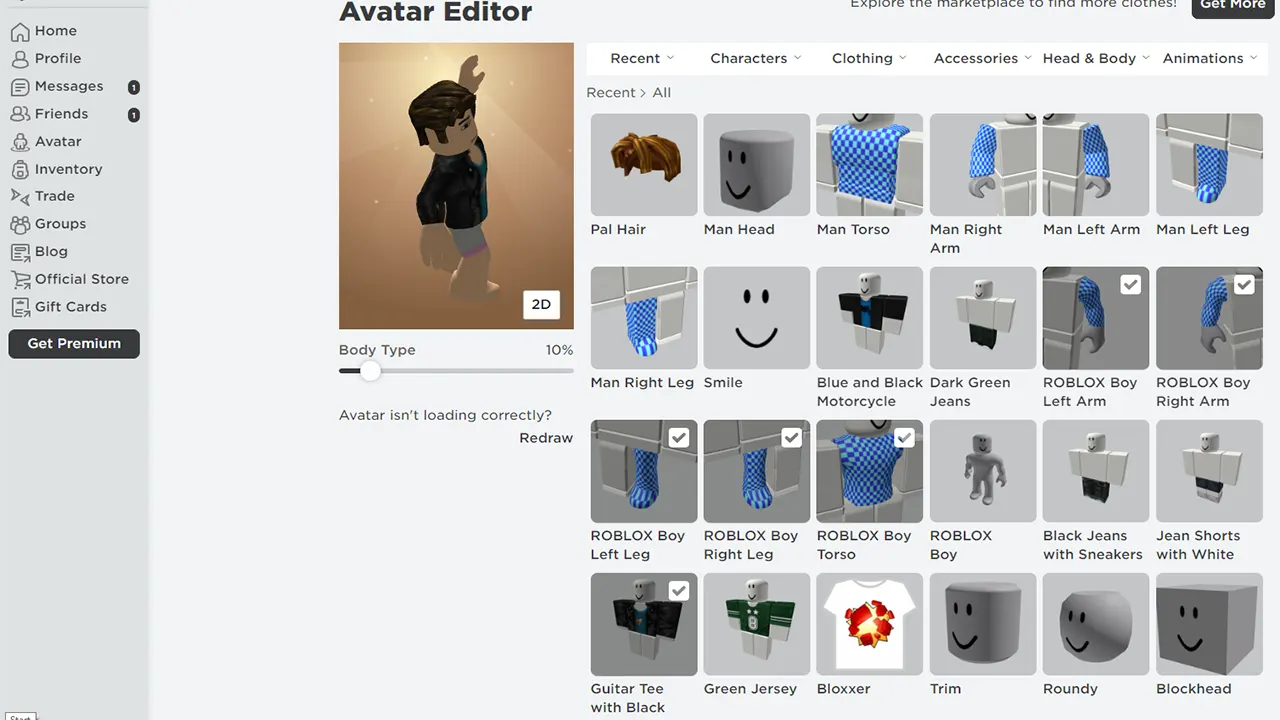
You can access the avatar editor by logging into your Roblox account on the official website or through the Roblox app. On PC, click the 'Avatar' icon on the left sidebar. On mobile, tap the 'Avatar' icon at the bottom of the screen. This will take you directly to your customization hub.
What is the fastest way to change my Roblox character's skin tone?
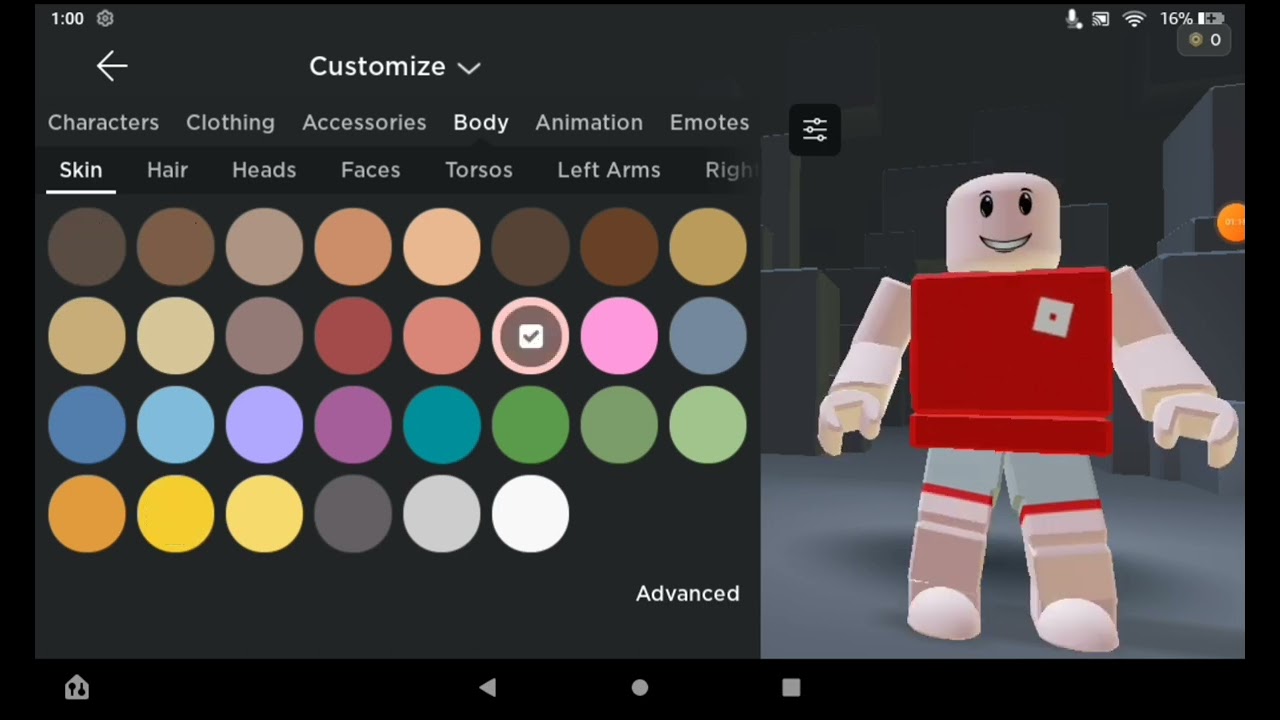
The fastest way is through the Avatar Editor. On PC, go to 'Avatar' > 'Body' > 'Skin Tone'. On mobile, go to 'Avatar' > 'Customize' > 'Body' > 'Skin Tone'. Select your desired color from the palette, and it applies instantly. No extra saving steps are needed, making it quick and hassle-free.
Are there any costs associated with changing skin color in Roblox?
Absolutely not! Changing your skin color in Roblox is entirely free. The wide range of skin tones available in the Avatar Editor is a standard feature accessible to all players, allowing you to customize your look without spending any Robux or real money.
Can I change individual body parts' skin color in Roblox?
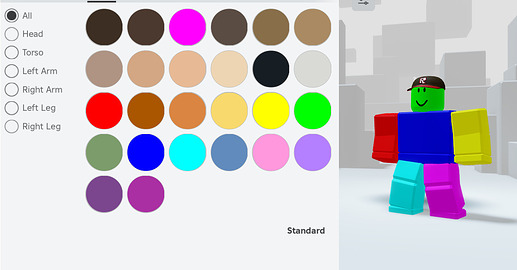
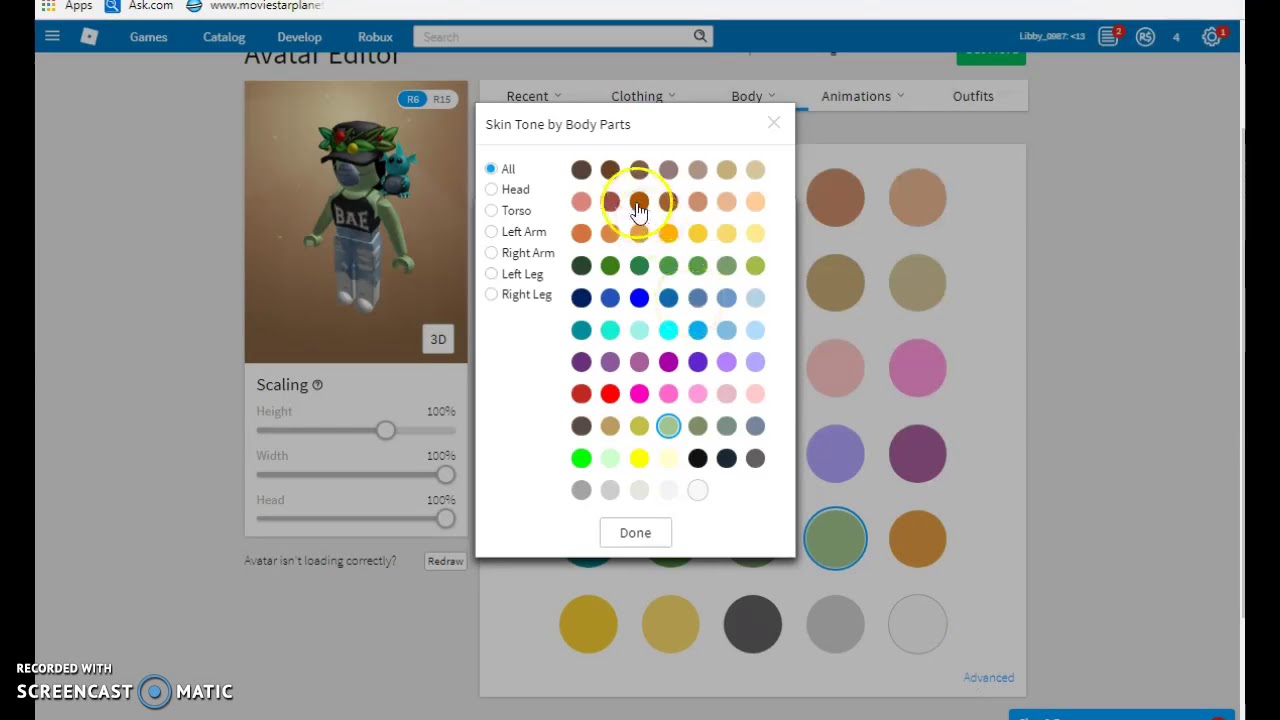
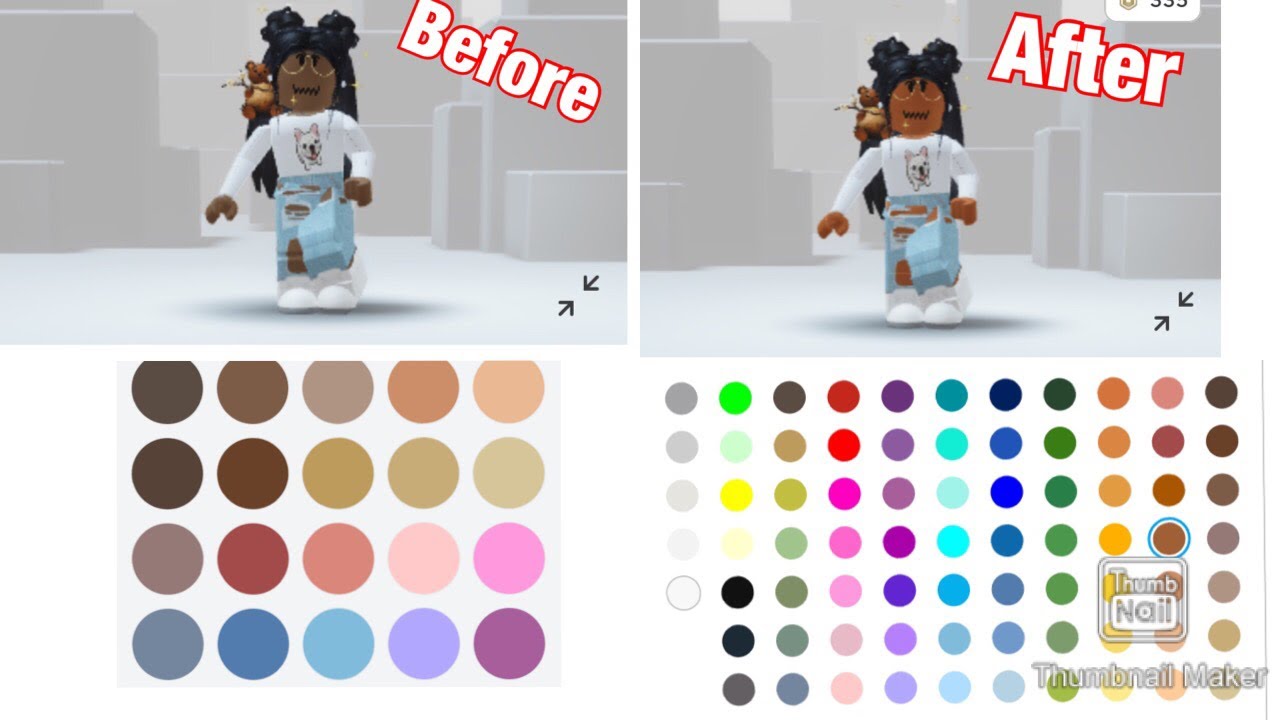
Yes, you can! Within the 'Skin Tone' section of the Avatar Editor, there's an 'Advanced' option (often a small link or button). Clicking this allows you to individually select and color specific body parts like your head, torso, left arm, right arm, left leg, and right leg, offering granular control over your avatar's appearance.
Why isn't my chosen skin color saving on Roblox?
If your chosen skin color isn't saving, it's likely a visual glitch or a conflict with currently equipped avatar items. Try unequipping full-body packages or older accessories that might override default body colors. Sometimes, refreshing the page, restarting the app, or clearing your browser's cache can resolve these minor display issues.
Is changing skin color on Roblox different for Rthro versus classic avatars?
The core process to change your skin color Roblox remains the same for both Rthro and classic avatars. However, Rthro avatars, with their more realistic body parts and textures, might display the chosen color with a slightly different visual fidelity. Some Rthro bundles might initially come with a set skin tone, which you can typically override through the standard Skin Tone editor.
Where can I find more diverse skin tone options in Roblox?
Roblox provides a comprehensive default palette of diverse skin tone options directly within the Avatar Editor's 'Skin Tone' section. This includes a wide range of natural and fantastical colors to choose from. While you cannot add custom hex codes, the existing palette is continually reviewed and offers ample choice for players to express their individuality.
For many US gamers, balancing a demanding job, family commitments, and a passion for gaming can be a tightrope walk. When you finally carve out time for titles like Roblox, you want that experience to be relaxing, fun, and personally expressive. One of the simplest yet most impactful ways to make your Roblox experience truly yours is by customizing your avatar's appearance, and a fundamental part of that is learning how to change your skin color Roblox. It's not just about aesthetics; it's about identity, role-playing, and connecting with a vibrant community that thrives on individuality. With 87% of US gamers regularly diving into virtual worlds, often for 10+ hours a week, and mobile gaming dominating a significant portion of that playtime, quick and easy customization features are more important than ever. This guide will cut through the clutter, offering practical, no-nonsense advice for busy adults who want to master their Roblox look without wasting precious gaming minutes. We’ll walk you through everything you need to know to change your skin color on Roblox, ensuring your avatar truly represents you in the digital realm.
We know you value straightforward solutions to common gaming pain points, whether it’s setup issues, performance hiccups, or just maximizing your limited play time. Customizing your avatar is a core part of the social gaming experience on platforms like Roblox, where you connect with friends and explore user-created worlds. This article focuses on empowering you with the knowledge to easily update your avatar's skin color, a crucial step in personalizing your online identity. Forget the hype; let's get down to the practical steps that make your gaming moments more enjoyable and reflective of who you are.
How Do I Change My Skin Color in Roblox on PC?
Changing your Roblox avatar's skin color on a PC is a straightforward process that takes just a few clicks, allowing you to quickly refresh your character's appearance. First, ensure you are logged into your Roblox account via a web browser. From the Roblox homepage, locate and click on the 'Avatar' icon situated in the left-hand navigation menu. This action will direct you to the Avatar Editor, which is your central hub for all character customization. Within the Avatar Editor, look for the 'Body' tab, usually found at the top or left side of the screen. Clicking 'Body' will reveal a dropdown menu with several options, including 'Skin Tone'.
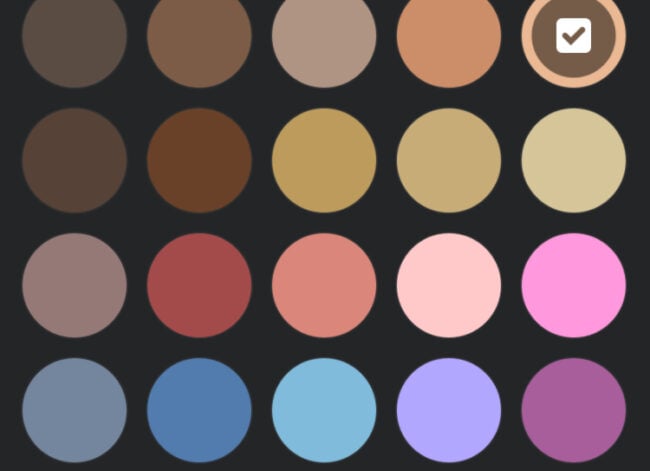
Once you select 'Skin Tone', a palette of colors will appear. These options range from natural human skin tones to more fantastical hues, giving you plenty of choices to express your individuality. Simply click on the color you wish to apply to your avatar. As you select different colors, your avatar preview on the right side of the screen will update instantly, allowing you to see the change in real-time. This immediate feedback helps you decide if the chosen color perfectly matches your vision for your character. After you are satisfied with your new skin color, there is no separate 'save' button needed; the change is applied automatically. You can then navigate away from the Avatar Editor, and your updated skin tone will be reflected across all games you join within Roblox, enhancing your personalized gaming experience.
How to Change Your Skin Color in Roblox on Mobile Devices?
For gamers on the go, updating your Roblox avatar's skin color via a mobile device is just as simple and convenient, leveraging the Roblox app's intuitive interface. Begin by opening the Roblox app on your iOS or Android device and ensure you are logged into your account. At the bottom of the screen, you will find a navigation bar; tap on the 'Avatar' icon, which typically looks like a person. This action will open the mobile Avatar Editor, designed for touch-screen interactions.
Inside the mobile Avatar Editor, you'll need to navigate through the customization options. Look for a section or tab labeled 'Body' or 'Customize'. Within this section, you'll find 'Skin Tone' or a similar option that allows for color adjustment. Tapping this will bring up a selection of skin colors, much like the PC version. Browse through the available colors and tap on your desired shade. The avatar preview will update instantly on your screen, giving you a clear view of how your character will look with the new skin tone. Once you've made your selection, the change is automatically saved and applied across your Roblox experience. This mobile-first design ensures that even during short breaks from work or family duties, you can easily maintain your avatar's fresh look, keeping your gaming persona current and ready for any adventure.
Why is Changing Your Skin Color in Roblox Important to Gamers?
For the average US gamer, aged around 36, who balances life, work, and family, gaming isn't just a pastime; it's a vital outlet for relaxation, creativity, and social connection. In a game like Roblox, where identity and self-expression are paramount, the ability to change your skin color Roblox is more than a superficial feature. It's about crafting an avatar that truly reflects who you are, or who you want to be, in that moment. Customization allows players to create a sense of belonging and representation, which is increasingly important in diverse online communities. It's a key aspect of role-playing, enabling players to fully immerse themselves in various scenarios and narratives within user-generated worlds. Whether you're portraying a fantasy character, mimicking a real-life friend, or simply expressing a mood, your avatar's appearance sets the stage.
Furthermore, personalizing your avatar's skin color contributes to the social aspect of Roblox, which, like many modern games, thrives on player interaction. A unique or well-designed avatar can serve as an icebreaker, a conversation starter, or a way to stand out among millions of other players. In a social gaming landscape where connections are often made based on shared aesthetics or creative expression, having control over your avatar's look enhances your overall enjoyment and engagement. It's a low-cost, high-impact way to optimize your personal gaming performance, not in terms of framerate, but in terms of self-satisfaction and confidence within the virtual world, allowing you to fully unwind and enjoy your limited gaming time.
Are There Free Ways to Change Your Roblox Skin Color?
Absolutely, changing your skin color in Roblox is entirely free, making it one of the most accessible and popular customization options available to all players. Unlike many cosmetic items that require Robux, the in-game currency, the basic skin tone palette is part of the default avatar customization tools. This means you won't need to spend any money or Robux to alter your character's complexion. Roblox offers a wide array of colors, from realistic skin tones to vibrant, imaginative hues, all freely available through the Avatar Editor on both PC and mobile platforms.
This commitment to free basic customization aligns with Roblox's broader philosophy of empowering user creativity and accessibility. For gamers looking for value for money and ways to stay current without breaking the bank, this is fantastic news. It ensures that everyone, regardless of their budget, can personalize their avatar and express themselves uniquely within the game's expansive universe. So, whether you're a long-time player or just starting, you can experiment with different skin colors as often as you like, without any financial commitment, ensuring your avatar always looks exactly how you envision it.
Can RTHRO Avatars Change Skin Color Differently?
RTHRO avatars in Roblox offer a more realistic and expressive character model compared to the traditional blocky avatars, and yes, they do handle skin color customization with a slight nuance, though the core process remains the same. When you change your skin color Roblox for an RTHRO avatar, the chosen color will generally apply across the entire body, just as it would for a classic avatar. However, RTHRO avatars are often composed of individual body parts with more detailed textures and shapes. This means that while the overall skin tone is unified by your selection, the way it renders might appear more seamless and natural on RTHRO models due to their advanced geometry and shading capabilities.
The main difference gamers might notice is when mixing RTHRO body parts with classic ones. If you have an RTHRO arm and a classic leg, applying a new skin tone will still color both, but their distinct styles might make the color appear slightly different on each part due to varying textures. Moreover, some RTHRO body bundles come with pre-set textures or specific skin tones that are part of the bundle design. If you're wearing such a bundle, you might need to manually adjust the skin color after equipping it, or ensure you're using individual RTHRO body parts that allow for universal skin tone application. Ultimately, the ability to customize skin color is fully present for RTHRO, contributing to the rich spectrum of personalized avatars you see in Roblox today, catering to diverse aesthetic preferences among players who appreciate modern avatar technology.
What if My Roblox Avatar Only Shows Limited Skin Tones?
Encountering limited skin tone options in your Roblox avatar editor can be frustrating, especially when you're aiming for a specific look. While Roblox generally offers a comprehensive palette, there are a few reasons why your options might seem restricted. The most common cause is usually related to the avatar packages or clothing items you currently have equipped. Some older avatar packages or character bundles might override the universal skin tone setting or come with pre-defined body parts that are not fully compatible with the standard skin color customization. If you're wearing an item that dictates a specific body color, it might visually prevent your chosen skin tone from displaying correctly.
To troubleshoot this, try the following steps: First, navigate to the Avatar Editor and carefully inspect all your equipped clothing and body parts. Try unequipping any full-body packages or older character bundles one by one, then re-checking the 'Skin Tone' options. Sometimes, resetting your avatar to a basic default state can resolve the issue by clearing any conflicting assets. Additionally, ensure your Roblox app or browser is updated to the latest version, as older versions might have display glitches. If the problem persists, clearing your browser cache or reinstalling the mobile app can often fix minor technical discrepancies. Remember, the core skin tone options are always free and readily available, so any limitations are typically a temporary display issue rather than a permanent restriction.
How Does Skin Color Customization Impact Social Gaming on Roblox?
In today's social gaming landscape, where platforms like Roblox are central hubs for connection, expressing identity through avatar customization, including skin color, is profoundly impactful. For US gamers who balance busy lives, Roblox offers a space to unwind and connect with friends, and your avatar is your digital persona. The ability to change your skin color Roblox helps foster a sense of inclusivity and representation. Players can create avatars that truly reflect their real-world identities or explore entirely new ones, enriching role-playing experiences and making interactions more meaningful. This level of personalization is crucial for forming bonds in a world where 87% of gamers prioritize social aspects, whether through in-game chat, shared experiences, or connecting on Discord.
Moreover, tailored avatars contribute to the vibrant creator economy within Roblox. When players see diverse and customizable characters, it inspires them to build more inclusive experiences and create content that resonates with a wider audience. This month's trends continue to show a strong emphasis on user-generated content and unique player identities, reinforcing the importance of granular customization like skin tone. For busy adults, a quick avatar update can be a mini-escape, a way to refresh their digital self before jumping into a new adventure or virtual hang-out with friends, ensuring their limited gaming time is spent in a way that feels authentic and enjoyable.
What are Common Mistakes to Avoid When Customizing Your Roblox Avatar's Skin?
When you change your skin color Roblox, while the process is generally user-friendly, a few common pitfalls can lead to minor frustrations. Understanding these can save you time and ensure a smoother customization experience. One frequent mistake is not double-checking your equipped avatar items. As mentioned, some older full-body packages or specific clothing items might visually override your chosen skin tone, making it seem like your selection isn't saving. Always ensure conflicting items are unequipped or check if a bundle is dictating a specific body color.
Another common oversight is impatience on slower connections. While changes are usually instant, a brief delay might occur before your avatar preview fully updates, especially on mobile data or weaker Wi-Fi. Give it a moment before assuming the change didn't register. Furthermore, some players forget that while individual body parts can be colored differently (if not using the 'All' option in advanced settings), the default 'Skin Tone' palette usually applies universally. If you're trying to color just an arm or leg, you'll need to use the 'Advanced' options under 'Body' to select specific limbs for custom coloring. Finally, always ensure you're using the official Roblox Avatar Editor and not a third-party tool, as unofficial methods can be risky or ineffective. Stick to the in-game tools for safe and reliable customization.
Can I Use Custom Colors Beyond the Standard Palette in Roblox?
Currently, Roblox's Avatar Editor offers a comprehensive but fixed palette of skin tones and body colors. This means you cannot input custom hexadecimal color codes or blend colors to create shades beyond what is provided in the standard selection. The available colors are designed to be universally compatible and ensure a consistent experience across all games and platforms within the Roblox ecosystem. While this might seem like a limitation for some creative users, it also ensures ease of use and prevents potential issues with color rendering or compatibility across millions of user-created experiences.
For gamers who appreciate creative freedom, the existing palette is quite extensive, offering a wide range of natural and fantastical options. If you're looking for unique visual flair, your best bet is to combine the standard skin tones with various clothing, accessories, and RTHRO body parts that offer different textures and effects. Roblox is constantly evolving its avatar customization features, and while truly custom color inputs aren't available for skin tones right now, the platform continues to introduce new ways for players to express themselves through new items and avatar bundles. Staying updated with Roblox announcements will ensure you're aware of any future expansions to the color palette or customization tools.
How Does Roblox's Avatar Customization Evolve with Gaming Trends?
Roblox's avatar customization, including how players change their skin color Roblox, continuously adapts to broader gaming trends, particularly those impacting US Gen Z and Millennial gamers who juggle work, family, and play. The shift from purely blocky avatars to the more expressive RTHRO models is a prime example, reflecting a demand for greater realism and detailed personal expression, similar to character creators in AAA titles. This evolution allows players to better represent themselves or create more sophisticated characters for role-playing, which is a key aspect of social gaming in 2026. The emphasis on user-generated content (UGC) also means that creators are constantly developing new clothing, accessories, and body parts that push the boundaries of avatar aesthetics, making customization a dynamic and ever-changing landscape.
Furthermore, the rise of mobile gaming and cross-play has influenced how customization tools are designed. They need to be intuitive and accessible across various devices, allowing a quick avatar update during a coffee break or commute. Social gaming trends, with players frequently interacting and forming communities, also drive the need for diverse customization options that support inclusivity and individual identity. Roblox's commitment to regularly updating its Avatar Editor and expanding its catalog of free and premium items ensures that players can always find new ways to express themselves and stay current with the latest virtual fashion and character styles, making their gaming experience consistently fresh and engaging. This continuous innovation makes Roblox a leading platform for personalized social play.
Customizing your Roblox avatar, especially mastering how to change your skin color, is a fundamental step in making your gaming experience truly your own. Whether you're on PC or mobile, the process is straightforward, free, and instantly gratifying, allowing you to quickly refresh your digital identity. We've explored why this personal touch matters for adult gamers balancing life and play, highlighting its role in self-expression, social interaction, and overall enjoyment. By avoiding common pitfalls and leveraging the robust tools Roblox provides, you can ensure your avatar always reflects your unique style and personality in the ever-evolving metaverse.
What's your biggest gaming challenge when it comes to personalization? Comment below and share your thoughts!
FAQ Section
Q: What is the fastest way to change my Roblox character's skin tone?
A: The fastest way to change your Roblox character's skin tone is by accessing the Avatar Editor on either PC via a web browser or through the Roblox mobile app. Navigate to the 'Body' section, then 'Skin Tone,' and simply click or tap your desired color. The change is instant and automatically saved, making it a quick update for your avatar.
Q: Are all skin color options free in Roblox?
A: Yes, all basic skin color options within the Roblox Avatar Editor are completely free. You do not need Robux or any real-world money to access the full palette of available skin tones. This allows every player to personalize their avatar without any cost.
Q: Why might my chosen skin color not appear correctly on my Roblox avatar?
A: If your chosen skin color isn't appearing correctly, it's often due to conflicting avatar items like full-body packages or certain clothing that override the universal skin tone. Try unequipping such items. Alternatively, ensure your app/browser is updated, or consider clearing your cache if the issue persists.
Q: Can I change individual body parts' skin color in Roblox?
A: Yes, you can change individual body parts' skin color. In the Avatar Editor, go to 'Body,' then 'Skin Tone,' and look for an 'Advanced' option (usually at the bottom of the color palette). Clicking this allows you to select and color specific body parts like head, torso, and limbs independently.
Q: How do RTHRO avatars affect skin color customization?
A: RTHRO avatars use the same skin color palette, but their more detailed geometry and textures can make colors render more smoothly. If mixing RTHRO and classic body parts, slight visual differences in how the color appears on each part might occur due to varying texture styles, though the overall color applies universally.
Q: Does changing skin color impact my gameplay or abilities in Roblox games?
A: No, changing your avatar's skin color in Roblox is purely cosmetic and has no impact on your gameplay, abilities, stats, or performance within any Roblox game. It is solely for personalizing your character's appearance and self-expression.
Effortlessly change your Roblox avatar's skin color on PC and mobile. Discover free customization options and understand how RTHRO impacts skin tone. Troubleshoot common issues and learn why personalization is key for social gaming.
35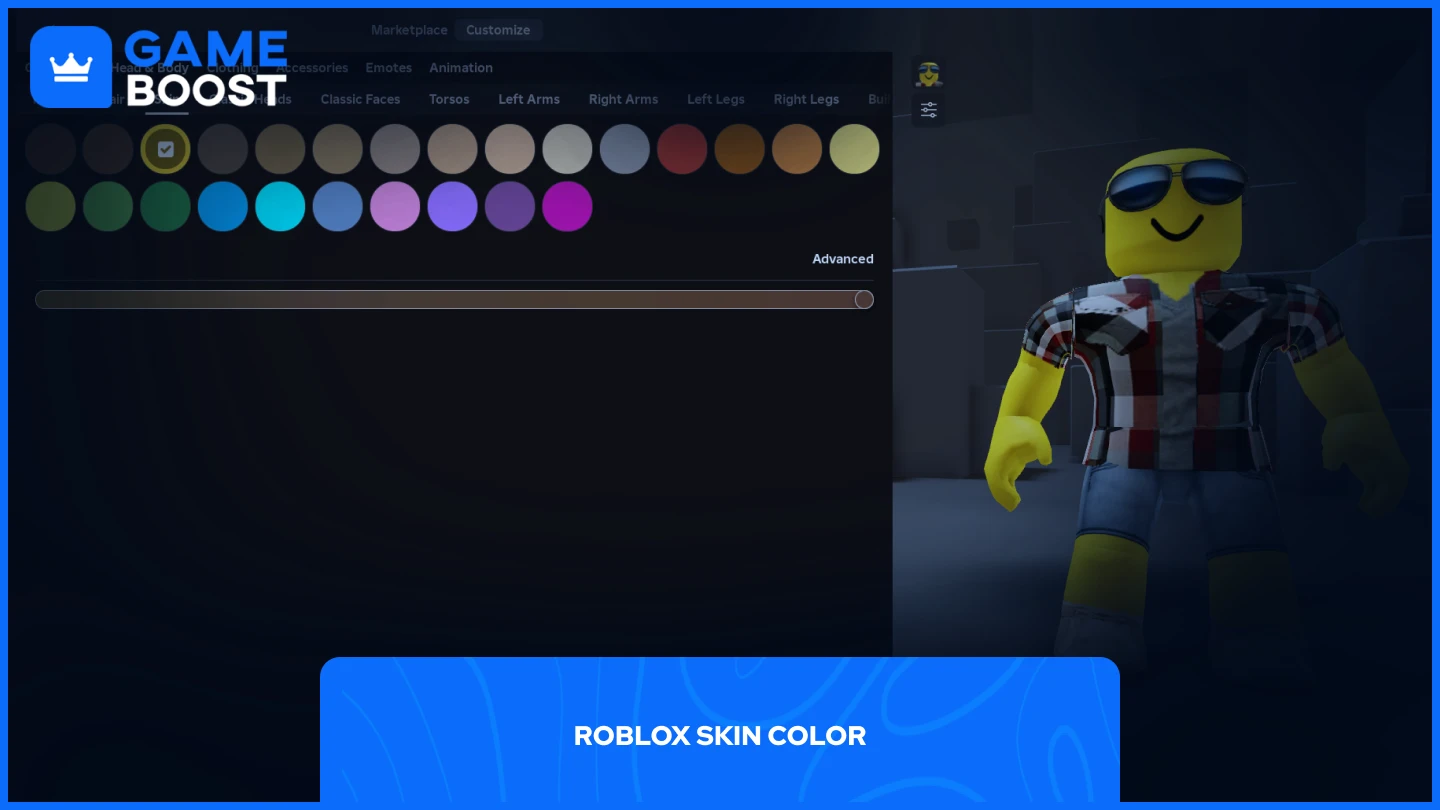


How To Change Your Skin Color In Roblox Step By Step 89565a0e C6dd 4864 8d53. How To Change Your Skin Tone In Roblox YouTube . How To Change Your Skin Color In Roblox Step By Step 6447f840 2ff1 4618 Ace7. How To Change Skin Color In Roblox Full Guide YouTube . How To Change Skin Color In Roblox Gamer Tweak Customize Avatar Roblox.webp



How To Change Skin Color Tone In Roblox PC YouTube . How To Change A Players Skin Color With A GUI Roblox Studio YouTube . How To Change Skin Color In Roblox Quick Guide YouTube . How To Change Your Skin Color On Roblox . How To Customize Avatar On Roblox Apps Roblox


Roblox Skin Tone Express Yourself 2 517x270 . How To Change Your Roblox Character Skin Color YouTube . How To Change Your Roblox Avatar S Hair And Skin Color Quick Guide . Roblox Skin Tone Express Yourself Advanced Skin Colors In Roblox Mobile 650x471 . How To Change Skin Color In Roblox EASILY Change Your Skin Color In


How To Change Your Skin Tone On Roblox READ DESCRIP YouTube . How To Change Skin Color On Roblox Best Method YouTube . Roblox Colour Change . Roblox Colour Change . ROBLOX How To Change Your Skin Color YouTube Hqdefault


How To Change Your Skin Color In Roblox Step By Step F6d51b01 E4c9 4c48 9918 Webp.webp. Change Your Roblox Skin Tone The Easiest Step By Step Guide Hq720 2 . Change Your Roblox Look A Skin Color Guide . How To Change Skin Color In Roblox Easy Steps For Custom Avatars . Change Your Roblox Look A Skin Color Guide



Roblox Colour Change . How To Change Your Color Of Your Body Parts In Roblox YouTube . How To Change Skin Color In Roblox Easy Steps For Custom Avatars . Change Your Roblox Skin Tone The Easiest Step By Step Guide Hqdefault . How To Change Your Skin Color In Roblox Step By Step En.webp




How To Change Skin Color In Roblox 50 Creative Ideas For Cute Roblox Usernames For Girls Afia . How To Change Your Skin Color In Roblox Step By Step 2 Santa.webp. How To Change Your Skin Color In Roblox Easy To Follow YouTube . How To Change Skin Color In Roblox How To Customize Your Character And Change Skin Color In Roblox3 . How To Get More Skin Colors In Roblox YouTube