Unlock the full potential of social gaming in Roblox with our comprehensive 2026 guide on how to get mic in Roblox. This article navigates you through everything from age verification and mic setup to troubleshooting common issues and optimizing your Spatial Voice experience. Designed for busy gamers balancing life with their passion, we provide clear, actionable steps to enhance your in-game communication. Discover the latest updates, privacy controls, and best practices to connect with friends and fellow players. Whether you are on PC or mobile, our expert tips ensure you're heard loud and clear, transforming your Roblox adventures into more immersive and interactive experiences. Get ready to dive into the next level of Roblox social play with confidence and ease. No more missing out on dynamic conversations, just pure gaming enjoyment.
How do I enable voice chat in Roblox?
To enable voice chat in Roblox, ensure you are 13 years or older and have verified your age using a valid ID. Once verified, navigate to your Roblox privacy settings, locate the 'Enable Voice Chat' toggle, and switch it on. A working microphone and updated Roblox client are also essential for seamless communication.
What are the age requirements for Roblox voice chat?
Roblox voice chat, specifically Spatial Voice, is exclusively available to users aged 13 and over. This age requirement is strictly enforced through a robust ID verification process to maintain a safe, age-appropriate environment for all participants on the platform in 2026.
How can I verify my age for Roblox voice chat access?
You can verify your age on Roblox by navigating to your account settings, clicking on 'Verify My Age,' and following prompts to securely upload a government-issued photo ID. This process, often handled by a secure third-party, typically takes only a few minutes to complete.
My mic isn't working in Roblox, what should I do?
If your mic isn't working in Roblox, first check your operating system's sound settings to confirm it's the default input and not muted. Then, ensure voice chat is enabled in Roblox privacy settings. Restarting the Roblox application or your entire computer can often resolve minor connectivity glitches and re-establish mic function.
Does Roblox voice chat work on all platforms?
Roblox Spatial Voice primarily supports PC, Mac, and mobile devices (iOS/Android). While Roblox is available on consoles, direct in-game voice chat integration might vary or be more limited. Always ensure your specific device and app version are updated for the best experience.
What is Roblox Spatial Voice and how is it different?
Roblox Spatial Voice is an innovative voice chat feature where audio volume and direction dynamically change based on your avatar's proximity and orientation to other players in the virtual world. This creates a much more realistic and immersive communication experience compared to traditional, non-spatial voice chat.
Can I get banned for misusing voice chat in Roblox?
Yes, absolutely. Roblox has strict community standards. Misusing voice chat through harassment, hate speech, sharing personal information, or any other violation can lead to warnings, temporary suspensions, or even permanent bans from the platform. Always game respectfully and adhere to the rules.
For many US gamers, balancing a career, family, and other commitments means gaming time is precious. When you do jump into a virtual world, you want it to be immersive, engaging, and above all, fun. Roblox, with its vast universe of user-created experiences, offers endless possibilities. However, true social interaction often feels incomplete without the ability to speak freely with friends and fellow players. Imagine trying to coordinate a raid, strategize in a competitive game, or simply share a laugh without a mic. It's like being at a party but having to whisper notes to everyone. That's a common pain point for many, especially when 87% of US gamers regularly play, often dedicating 10+ hours a week, and social gaming trends continue to dominate across mobile and PC platforms.
The good news is that Roblox has continuously evolved its voice chat capabilities, most notably with Spatial Voice, allowing for more natural, proximity-based communication. Getting your mic set up in Roblox, however, can sometimes feel like navigating a maze of settings and requirements. You're not alone if you've found yourself asking, "how to get mic in Roblox?" This comprehensive 2026 guide is designed for you: the busy gamer who values clear, actionable information to optimize their playtime. We'll cut through the clutter, provide step-by-step instructions, and troubleshoot common issues so you can dive into seamless voice communication without the hassle.
What exactly is Roblox Voice Chat and why is it a game-changer?
Roblox Voice Chat, specifically Spatial Voice, is an immersive feature that allows players aged 13 and older to communicate verbally with each other within supported Roblox experiences. Unlike traditional voice chat systems where everyone hears everyone, Spatial Voice simulates real-world acoustics. This means the volume and direction of another player's voice depend on their proximity and orientation to your avatar in the virtual world. If someone is far away, their voice will be faint; if they walk behind you, their voice will sound like it's coming from behind. This level of realism significantly enhances social interaction, making conversations feel more natural and game environments more alive.
For many gamers, especially those who prioritize social play and relaxation, Spatial Voice transforms Roblox from a visual playground into a truly interactive social hub. It fosters stronger connections, improves teamwork in cooperative games, and adds an extra layer of spontaneity and fun to casual hangouts. It’s a key step towards making Roblox feel less like a game and more like a shared virtual space, reflecting the broader trend of social gaming dominating platforms in 2026, where digital friendships are as valuable as real-world ones.
What are the primary requirements to enable Voice Chat in Roblox in 2026?
Before you can jump into verbal conversations on Roblox, there are a few essential criteria you need to meet. These requirements are in place to ensure a safe and age-appropriate environment for all users, aligning with Roblox's commitment to community standards and reflecting the industry's push for secure online spaces.
Age Requirement: You must be 13 years or older to use Roblox voice chat. This is a non-negotiable rule.
Age Verification: Your age needs to be officially verified by Roblox. This typically involves submitting a government-issued photo ID (like a driver's license, passport, or state ID) through a secure third-party verification service integrated within Roblox settings.
Working Microphone: Obviously, you'll need a functional microphone connected to your device. This can be a built-in mic on a laptop or mobile phone, a gaming headset, or a standalone USB microphone.
Updated Roblox Client: Ensure your Roblox application on PC, Mac, or mobile is updated to the latest version. New features and bug fixes, especially concerning Spatial Voice, are regularly rolled out.
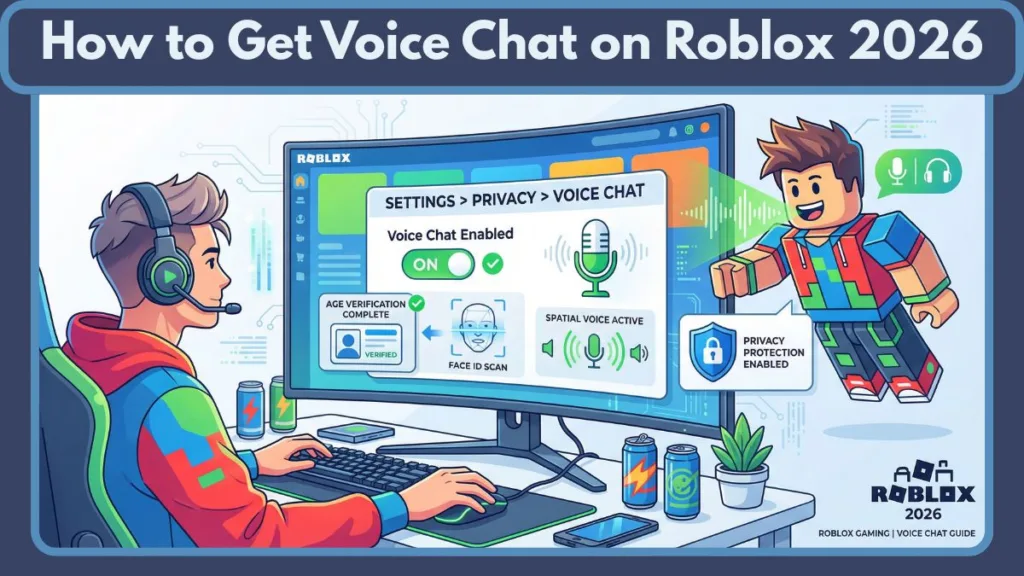
Enabled Voice Chat in Settings: Once verified, you'll need to manually enable the Voice Chat feature within your Roblox Privacy Settings.
Meeting these prerequisites ensures a smooth entry into the world of Roblox voice communication.
How do I verify my age to unlock voice chat features?
Age verification is a critical step for accessing voice chat and other 13+ features on Roblox. It's a quick, secure process designed to protect younger users. Here's how to do it:
Log In to Your Roblox Account: Access your account on the Roblox website or through the app.
Navigate to Settings: Click on the gear icon (Settings) in the top right corner (on desktop) or tap the three dots then 'Settings' (on mobile).
Go to Privacy: Select the 'Privacy' tab from the left-hand menu.
Initiate Age Verification: Look for the 'Verify My Age' button and click it. You'll be prompted to continue with the verification process.
Prepare Your ID: You'll need a valid, government-issued photo ID (e.g., passport, driver's license, state ID, residence permit). Ensure it's not expired and clearly shows your date of birth.
Follow On-Screen Instructions: A secure third-party service (usually Veriff) will guide you through taking a picture of your ID and often a live selfie to match your face to the ID. This process typically takes only a few minutes.
Await Confirmation: Once submitted, the verification usually happens almost instantly. You'll receive a confirmation that your age has been verified, and your 13+ features, including voice chat, will be unlocked.
This secure process is crucial for Roblox to maintain a safe environment, especially for a platform used by millions globally, including a significant adult demographic who value secure social interactions.
What's the step-by-step process to set up my mic in Roblox Spatial Voice?
Once your age is verified and you meet all the requirements, setting up your microphone for Spatial Voice is straightforward. Follow these steps for a seamless experience:
Check Your System's Microphone Settings:
On PC (Windows): Right-click the speaker icon in your taskbar, select 'Sound settings' or 'Sound Control Panel.' Go to the 'Recording' tab. Ensure your desired microphone is enabled and set as the 'Default Device.' Speak into it and check if the green bar moves to confirm it's picking up sound. Adjust input volume here if needed.
On Mac: Go to 'System Settings' (or 'System Preferences'), then 'Sound,' and select the 'Input' tab. Choose your microphone and adjust its input volume. Test it by speaking.
On Mobile (iOS/Android): Ensure Roblox has microphone permissions. Go to your device's 'Settings,' find 'Roblox' in your app list, and make sure the microphone permission is enabled.
Enable Voice Chat in Roblox:
Log in to your Roblox account.
Go to 'Settings' (gear icon).
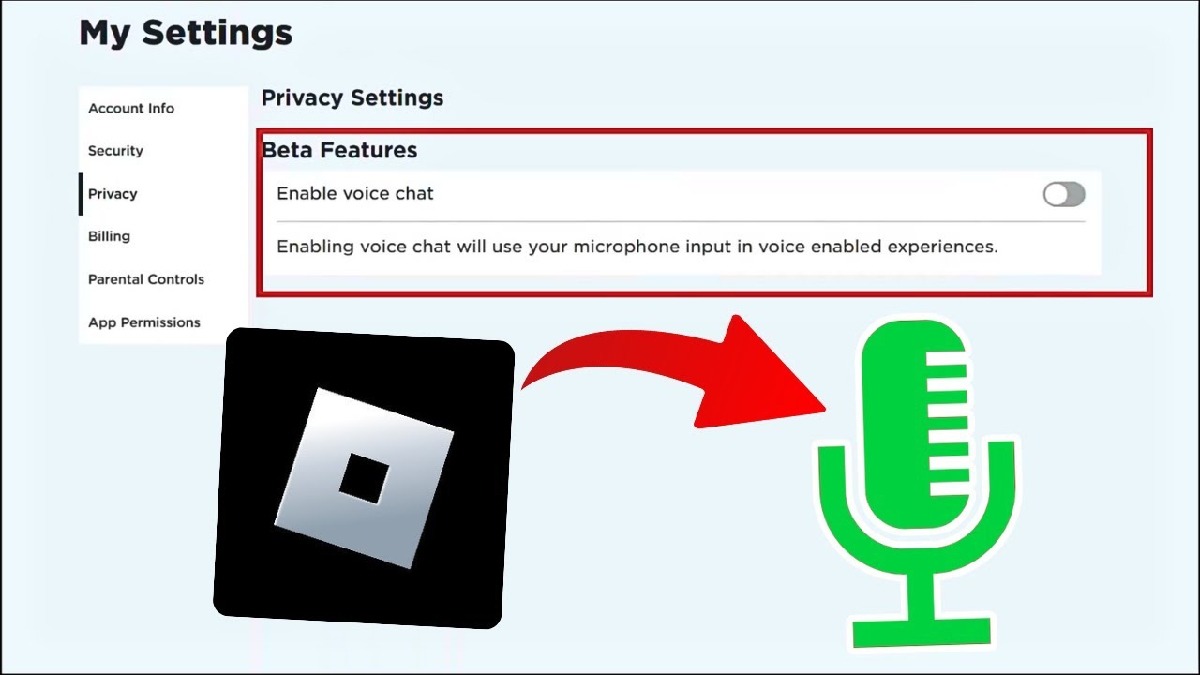
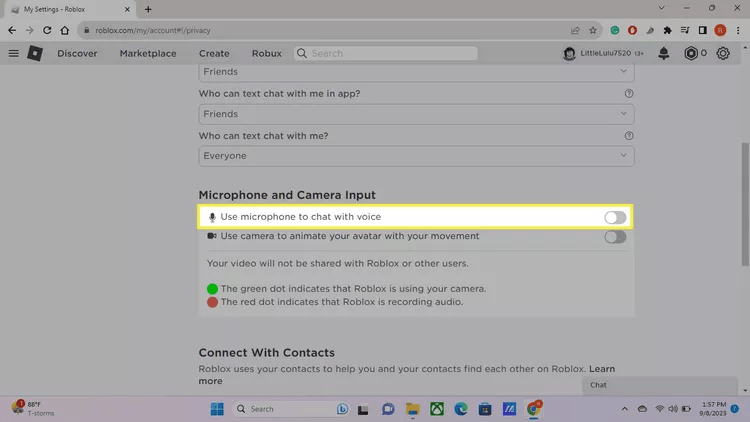
Click on the 'Privacy' tab.
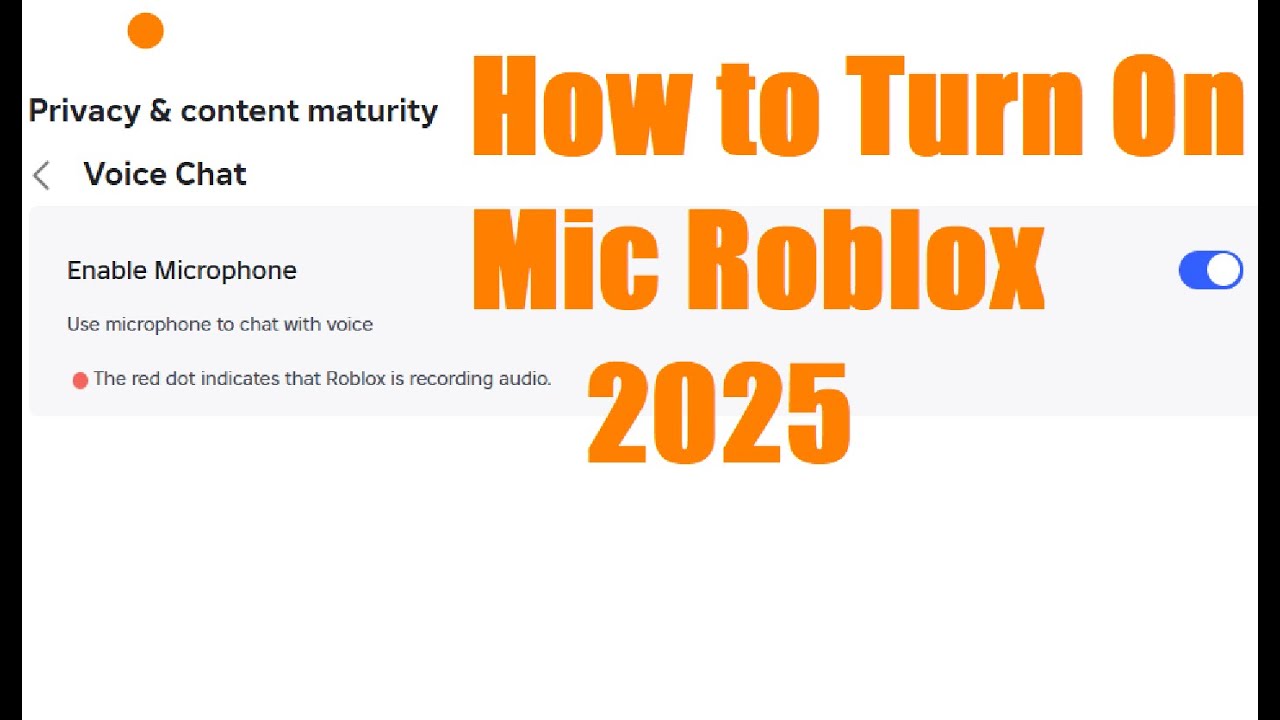
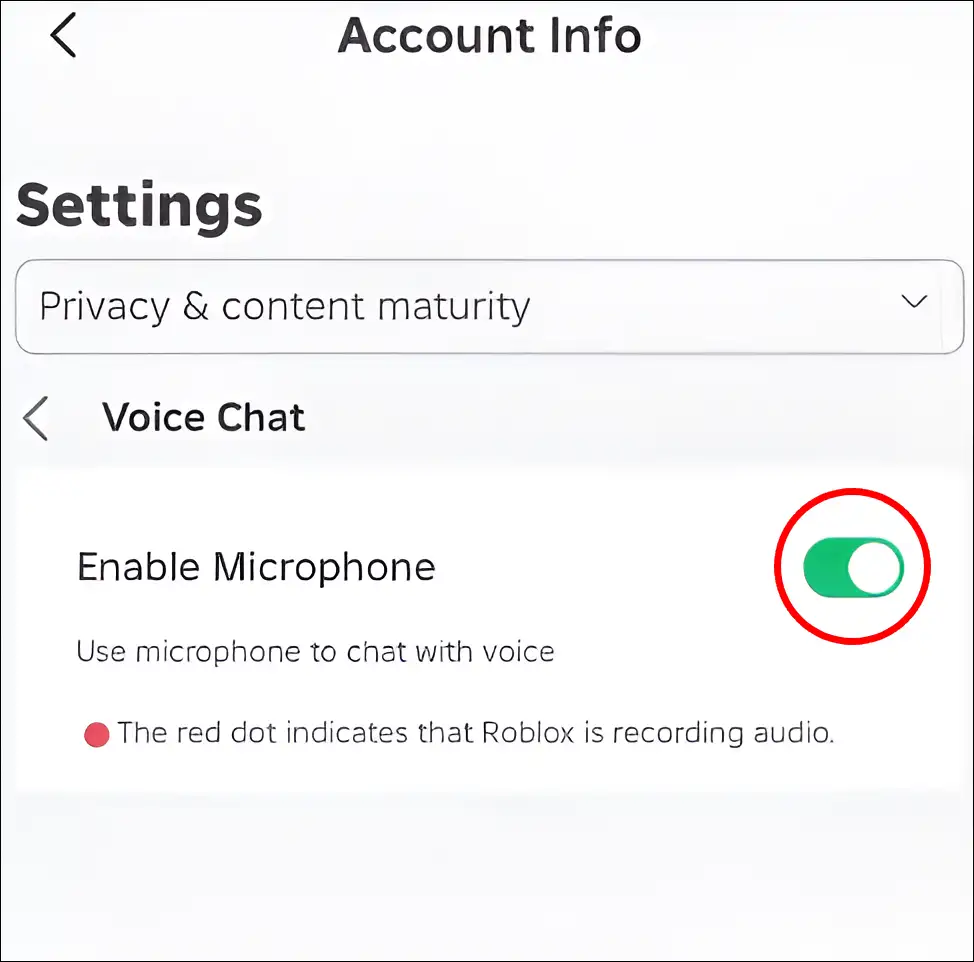
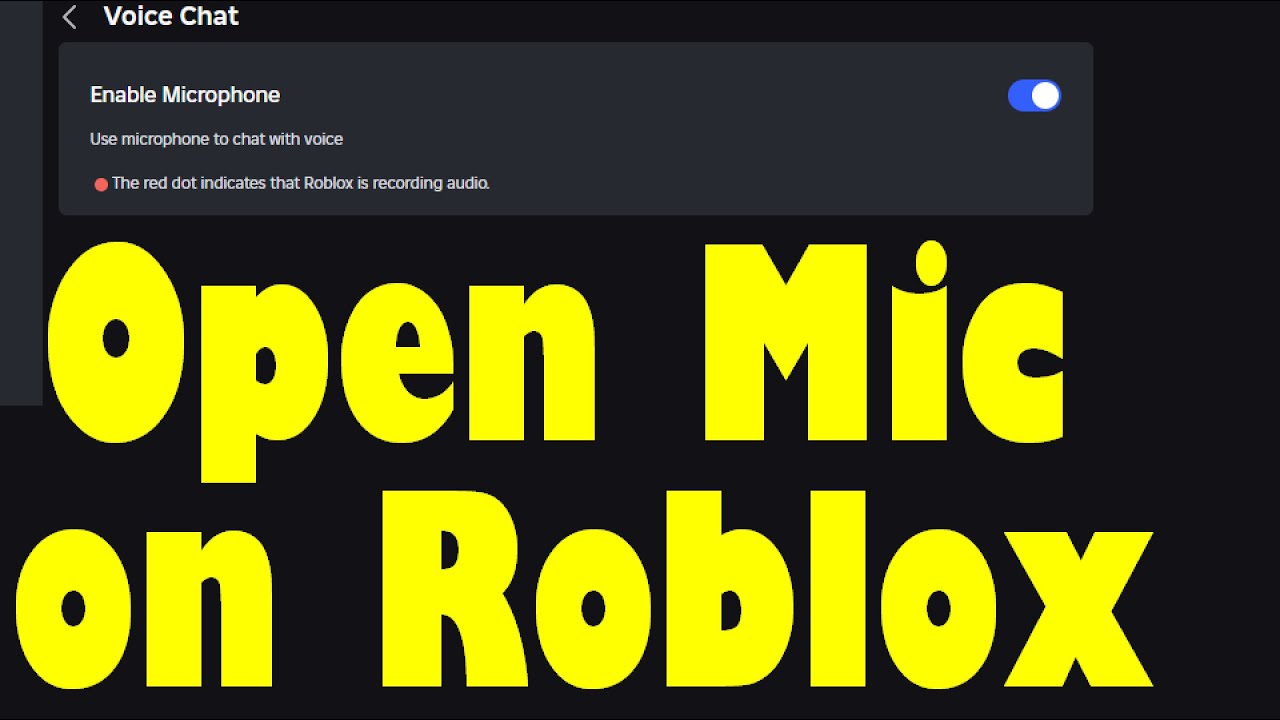
Scroll down to 'Voice Chat' and toggle the 'Enable Voice Chat' option ON. If you don't see this, revisit the age verification step.
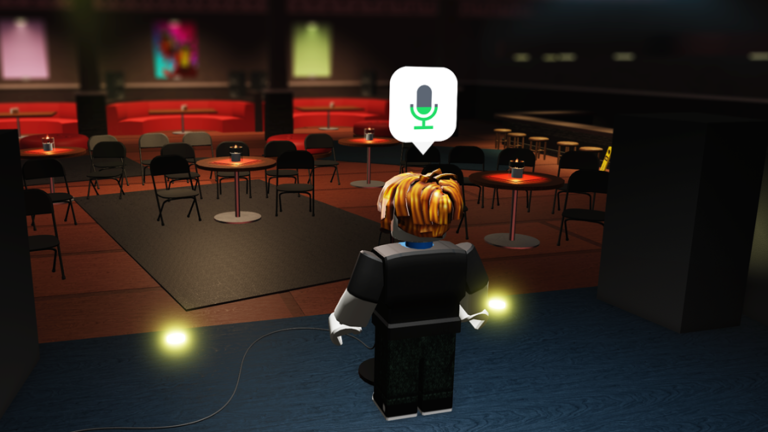
Join a Spatial Voice Enabled Experience: Not all Roblox games support Spatial Voice. Look for experiences that specifically mention it or have the Spatial Voice icon during gameplay (often a small microphone icon above your head or near other players). Many popular social hangout games are now integrating this feature.
Activate Your Mic In-Game: In a Spatial Voice enabled experience, you should see a small microphone icon near your avatar's head. By default, your mic might be muted. Click this icon or use a hotkey (if configured by the game) to toggle your microphone on or off. A green outline around the icon usually indicates it's active and picking up your voice.
By following these steps, you'll be ready to communicate vocally and enjoy the dynamic world of Roblox Spatial Voice.
How can I troubleshoot common Roblox mic issues like not being detected or no sound?
It's frustrating when your mic isn't cooperating. Many gamers, especially those juggling multiple responsibilities, just want things to work. Here are common troubleshooting steps for Roblox mic issues:
Microphone Not Detected/No Input:
Check Physical Connection: Ensure your headset or standalone mic is firmly plugged into the correct port (USB or 3.5mm jack).
System Default Device: As mentioned, verify your desired microphone is set as the default recording device in your operating system's sound settings. Some systems might default to a webcam mic or an unused input.
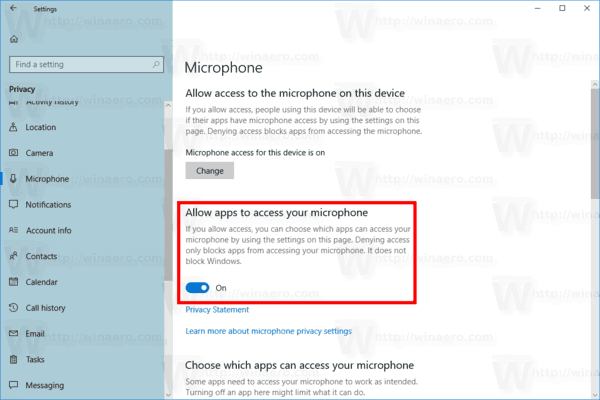
Privacy Settings (OS Level): On Windows 10/11, go to 'Settings > Privacy > Microphone' and ensure 'Allow apps to access your microphone' is ON, and specifically that Roblox has permission.
Drivers: Ensure your microphone drivers are up to date. You can usually check this through your device manager (Windows) or the manufacturer's website.
Restart Roblox/Computer: A classic but often effective solution. A full restart can clear temporary glitches.
Mic Is On But No One Hears Me:
Roblox In-Game Mute: Check the microphone icon in Roblox. Is it muted (often indicated by a red slash)? Click it to unmute.
Roblox Privacy Settings: Double-check that 'Enable Voice Chat' is toggled ON in your Roblox Privacy settings.
Input Volume Too Low: Adjust your microphone's input volume in your OS sound settings. Sometimes it's set too low by default.
Game-Specific Mute: Some Roblox experiences might have their own in-game mute options or volume controls. Check the game's settings menu.
Internet Connection: A poor or unstable internet connection can sometimes cause audio dropouts or complete failure to transmit voice data. While not a direct mic issue, it's worth checking.
Others Can Hear Me But I Can't Hear Them:
This is usually a speaker/headphone issue, not a mic issue. Check your system's output device settings, ensuring your headphones or speakers are selected as the default playback device and not muted.
By systematically going through these checks, you can resolve most microphone-related problems in Roblox.
Are there specific games or experiences where Roblox Voice Chat truly shines?
Absolutely! While Spatial Voice is expanding across the platform, certain types of experiences truly leverage its potential, creating unparalleled social interactions. For gamers who enjoy social play and building communities, these are must-tries:
Social Hangout Games: Experiences like Vibe Cafe, Adopt Me! (for role-playing aspects), or various 'club' games become incredibly dynamic with voice chat. Spontaneous conversations, role-playing, and casual banter flow much more naturally.
Team-Based Competitive Games: In games requiring strategy and coordination, voice chat is invaluable. Imagine calling out enemy positions in a shooter or coordinating builds in a strategy game – it cuts down on typing time and improves response. While not as prevalent as third-party comms like Discord, in-game voice offers convenience.
Exploration & Adventure Games: Discovering new worlds with friends is enhanced when you can react in real-time, point things out verbally, and share experiences instantly. It adds to the feeling of a shared journey.
Role-Playing Games (RPGs): Spatial Voice elevates the immersion in RPGs, allowing for more authentic character interactions, negotiations, and storytelling. It bridges the gap between text-based role-play and a fully voiced experience.
As of this month, developers are increasingly integrating Spatial Voice, realizing its power to create more engaging and sticky content. Keep an eye out for games prominently featuring the voice chat icon or advertising its support.
How do I manage privacy and safety settings for voice chat in Roblox?
Roblox takes safety seriously, especially with voice chat. For adult gamers, balancing fun with peace of mind for younger family members is key. Here's how to manage your privacy and safety settings:
Global Voice Chat Toggle: The most important setting is the 'Enable Voice Chat' toggle in your Privacy Settings. You can turn this off at any time if you prefer not to use voice chat or want to disable it for younger users on a shared account.
Muting Individual Players: If someone is being disruptive or you simply don't want to hear them, you can mute individual players in-game. Typically, you click on their avatar or username in the player list, and a mute option will appear. This is a local mute, meaning only you won't hear them.
Reporting Abuse: Roblox has robust reporting tools. If a player is violating community standards through voice chat (e.g., harassment, hate speech, inappropriate content), you can report them directly in-game. Roblox moderates voice chat and takes action against offenders. This feature is vital for maintaining a positive environment for all, especially with the industry's continued focus on combating toxicity.
Blocking Users: Blocking a user will prevent them from contacting you in any way, including voice chat. This is a more permanent solution for persistent issues.
Communication Settings (Friends vs. Everyone): While voice chat itself is age-restricted, other communication settings (like who can chat with you, who can send you messages) are also found in the Privacy section. You can restrict these to 'Friends' or 'No One' for added control.
Regularly reviewing these settings ensures your Roblox experience remains enjoyable and secure.
What are the best practices for an enjoyable voice chat experience in Roblox?
To make the most of your Roblox voice chat experience and be a good community member, consider these best practices:
Use a Quality Mic: A decent microphone, even a basic headset mic, makes a huge difference. Clear audio prevents misunderstandings and makes conversations more pleasant. Avoid tinny or overly echoey mics if possible.
Mind Your Background Noise: Try to game in a relatively quiet environment. Loud music, TV, or household chatter can be distracting for others. Many headsets offer noise cancellation, which is a great feature for busy households.
Push-to-Talk (if available): If the game supports a push-to-talk (PTT) option, use it. This prevents constant open mic audio, background noise, or accidental transmissions, making for a much cleaner audio channel. It's often preferred in more competitive or focused experiences.
Be Respectful: Adhere to Roblox's community standards. No harassment, hate speech, spamming, or sharing personal information. Remember that even though you're 13+, there are still younger players and strict rules. A positive and respectful attitude enhances everyone's experience.
Adjust Volume Levels: Use in-game or system volume controls to ensure you're not too loud or too quiet. Nobody likes having their ears blasted or struggling to hear what you're saying.
Communicate Clearly: Speak clearly and at a moderate pace. Avoid shouting unless absolutely necessary for an in-game situation. Be mindful of others who might have different accents or be learning English.
Following these tips ensures a smoother, more enjoyable, and respectful voice chat environment for everyone on Roblox.
Can I use Voice Chat on Roblox Mobile and what are the differences?
Yes, you absolutely can use Voice Chat on Roblox Mobile (iOS and Android)! The experience is largely consistent with the desktop version, but there are a few nuances to be aware of, particularly for the large percentage of US gamers who primarily play on mobile devices.
Seamless Integration: Once your age is verified and voice chat is enabled in your settings, it works automatically on mobile in Spatial Voice-enabled experiences. Your phone's built-in microphone will be used by default.
Permissions: The most crucial step on mobile is ensuring the Roblox app has permission to access your device's microphone. You typically grant this when you first use the feature, but you can manage it later in your phone's app settings (e.g., Settings > Apps > Roblox > Permissions > Microphone).
Hardware Considerations: While convenient, a phone's built-in mic might pick up more background noise compared to a dedicated gaming headset. For clearer audio, especially in a busy environment, consider using wired or wireless earbuds/headsets with a built-in microphone.
Screen Real Estate: The in-game mute/unmute button might be smaller or in a slightly different location on mobile compared to PC, due to optimizing for smaller screens. Familiarize yourself with its placement.
Battery Drain: Continuous use of voice chat can consume more battery on mobile devices. If you're planning a long gaming session, keep an eye on your battery level or play while charging.
For many gamers who jump into Roblox on the go, mobile voice chat is a vital feature that maintains the social connection no matter where they are, tapping into the mobile dominance trend in modern gaming.
What's next for Roblox Voice Chat and how can I stay updated?
Roblox is constantly innovating, and voice chat, particularly Spatial Voice, is a key area of development. The platform aims to make communication more natural, secure, and integrated. For gamers who like to stay current without getting caught up in hype, knowing where things are headed is valuable.
Expansion to More Experiences: Expect to see Spatial Voice integrated into an even wider range of experiences, including more diverse game genres and social hubs. Developers are realizing the power of this feature to increase engagement and retention.
Enhanced Moderation & Safety Tools: Roblox is continuously refining its moderation systems, including AI-driven tools, to ensure voice chat remains a safe space. This means quicker detection and action against violations, providing a more secure environment for all.
New Features & Customization: While specifics are often under wraps, it's reasonable to anticipate features like improved audio quality, more granular player-specific volume controls, or potentially even voice effects (though always within strict community guidelines) in the future.
Cross-Platform Consistency: As Roblox expands to more platforms (e.g., consoles), efforts will likely be made to ensure a consistent and high-quality voice chat experience across all devices.
To stay updated, regularly check the official Roblox Blog, their Developer Forums, and follow their official social media channels. These are the primary sources for announcements regarding new features, safety updates, and platform advancements. Being informed helps you get the most out of your Roblox experience and stay ahead of the curve.
In conclusion, getting your mic set up in Roblox is a straightforward process once you understand the age verification and privacy settings. It transforms your gaming experience, making social interactions more fluid and immersive, whether you're strategizing with friends or simply enjoying a casual chat. With Roblox's continuous evolution in voice technology and a clear focus on user safety, integrating voice into your gameplay has never been easier or more rewarding. So, go ahead, get verified, enable that mic, and jump into the vibrant, vocal world of Roblox.
What's your biggest gaming challenge when it comes to communication? Comment below and let's discuss!
FAQ Section
Is Roblox Voice Chat free to use?
Yes, Roblox Voice Chat (Spatial Voice) is completely free to use once you meet the age and verification requirements. There are no additional costs or subscriptions needed to access this feature.
Can I turn off voice chat if I don't want to use it?
Absolutely. You can easily toggle off the 'Enable Voice Chat' option in your Roblox account's Privacy settings at any time. This allows you to control when and if you participate in voice communication.
What kind of microphone works best with Roblox?
Most standard microphones compatible with your device (PC headset, mobile phone's built-in mic, USB mics) will work. For the best clarity and reduced background noise, a dedicated gaming headset with a good quality microphone is recommended, but not strictly necessary.
How does Roblox handle toxic behavior in voice chat?
Roblox employs a combination of automated moderation, player reporting, and human review to address toxic behavior in voice chat. Violations of their Community Standards, such as harassment or hate speech, can lead to warnings, suspensions, or permanent bans.
Do all Roblox games support Spatial Voice?
No, not all Roblox games support Spatial Voice. Developers must actively integrate the feature into their experiences. Look for games that specifically advertise Spatial Voice support or display the microphone icon during gameplay to indicate its availability.
Roblox voice chat age verification, mic setup guide, troubleshooting common issues, enhancing social gaming, 2026 voice chat features, Roblox Spatial Voice requirements, privacy controls, mobile mic setup.
35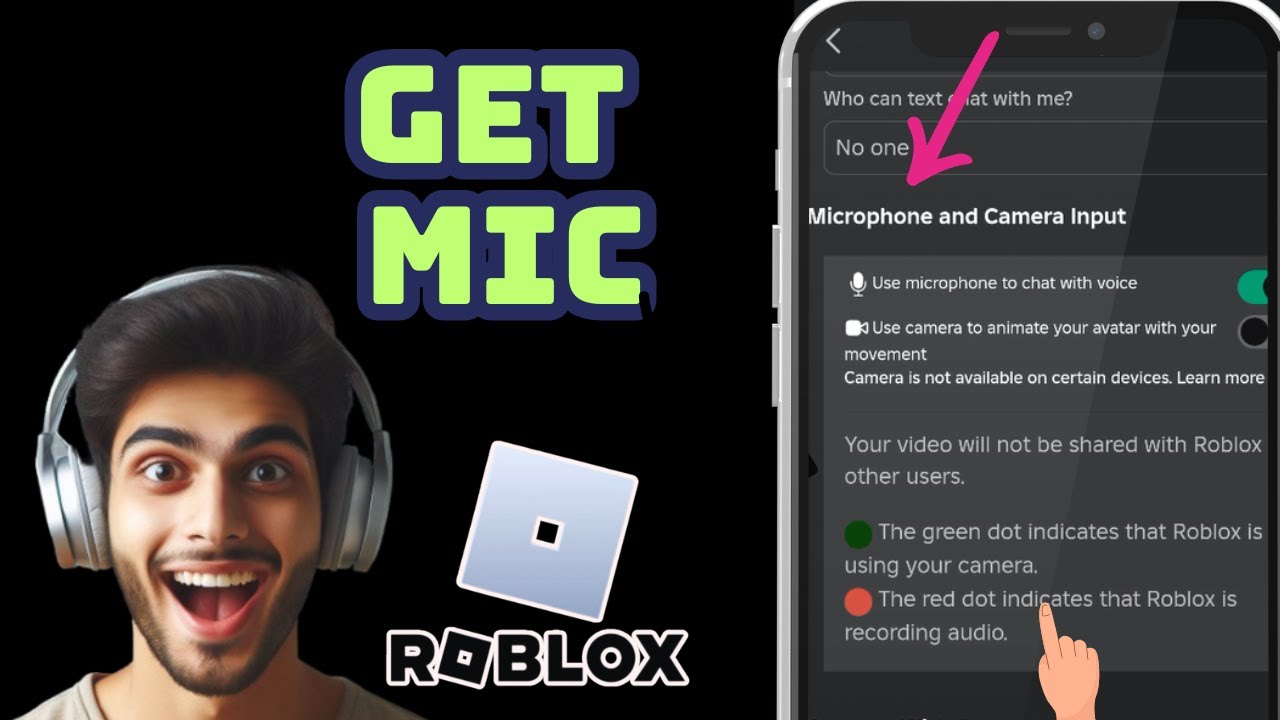



How To Actually Get Or Enable Mic Or Vc On Roblox Mobile Enable . How To Turn On Mic In Roblox 2026 YouTube . How To Actually Turn On Microphone Input On Roblox Mobile Or Pc . Der Einfachste Weg Und Die F R Open Mic Im Neuesten Roblox 11 . Roblox Mic Troubles That Red Triangle Explained



How To Turn On Mic In Roblox Enable Roblox Mic PC Mobile Guide YouTube . How To Activate Mic Or Voice Chat On Roblox Get Roblox VOICE CHAT . Mic Games In Roblox At Harrison Fong Blog . Roblox Mic Your Voice In The Metaverse . How To Enable And Your Mic For Voice Chat On Roblox 19556

How To Play Music Through Mic On Roblox 2025 Easy Voice Chat YouTube . How To Get Voice Chat On Roblox 2026 Enable VC Without ID Izoate How To Enable Voice Chat In Roblox 2026. How To Turn On The Microphone On Roblox Voice Chat Enable Roblox App. How To Open Mic In Roblox Enable Roblox Mic Tutorial YouTube . Roblox How To Turn On Or Enable Mic On Roblox 2024 YouTube



How To Use MIC On Xbox Roblox 2025 YouTube . Roblox MIC UP Codes Are There Any. How To Use A Microphone In Roblox Step By Step Hollyland Image 149 . How To Get Voice Chat On Roblox In 2026 YouTube . How To Fix Microphone Not Working In Roblox YouTube


Roblox Mic Your Voice In The Metaverse Png. How To Allow Microphone Access On Roblox App On PC New Update YouTube . How To Message On Roblox 2026 A Quick Guide . Por Qu No Funciona Mi Micr Fono En Roblox Soluciones Y Why Is My Mic Not Working On Roblox Step 8 Version 2 . How To Remove Mic Above Head In Roblox 2024 YouTube



How To Get Mic Roblox Mobile Full Guide YouTube . How To Turn On The Microphone On Roblox Voice Chat Image 139 . Why Is Microsoft Roblox Not Working Solutions For 2026 Roblox Mic Not Working . How To Get Mic On Roblox In IPad Use Roblox Mic Tutorial IPhone YouTube . How To Get Microphone Rod In Fisch March 2026 Full Twitch Guide Get Microphone Rod In Fisch



How To Turn ON Your Mic In Roblox Easy Guide Roblox Mic Tutorial Hqdefault . How To Play Music Through Mic On Roblox Guide 2026 YouTube . Why Won T My Roblox Voice Chat Work Simple Fixes . How To Enable Mic On Roblox Chat With Voice GINX TV Roblox Voice Chat Guide . How To Get Player S Mic Loudness Roblox Studio Voice Chat Tutorial